I’ve spent countless hours researching, testing, and exploring every possible avenue to answer one of the most frequently asked questions among UK streaming enthusiasts: can you actually get Disney Plus on EE TV? Well, let me cut straight to the chase—the answer isn’t as straightforward as you’d hope, but don’t worry. I’m about to take you through everything you need to know, from technical limitations to brilliant workarounds that’ll have you streaming your favourite Marvel movies, Star Wars series, and classic Disney animations in no time.
The streaming landscape in the UK has evolved dramatically, and with it, the expectations we have for our television services. EE, one of Britain’s leading telecommunications providers, has positioned itself as a comprehensive solution for broadband, mobile, and television services. Meanwhile, Disney Plus has emerged as an absolute powerhouse in the streaming world since its UK launch in March 2020. So naturally, customers expect these two titans to work seamlessly together. But here’s the thing—technology, licensing agreements, and platform compatibility don’t always align with consumer expectations.
Throughout this comprehensive guide, I’ll walk you through the technical realities, explore alternative solutions, and provide you with actionable steps to enjoy Disney’s extensive content library alongside your EE TV service. Whether you’re a tech-savvy streaming veteran or someone who just wants to watch The Mandalorian without the hassle, I’ve got you covered.
Understanding EE TV: What You’re Actually Working With
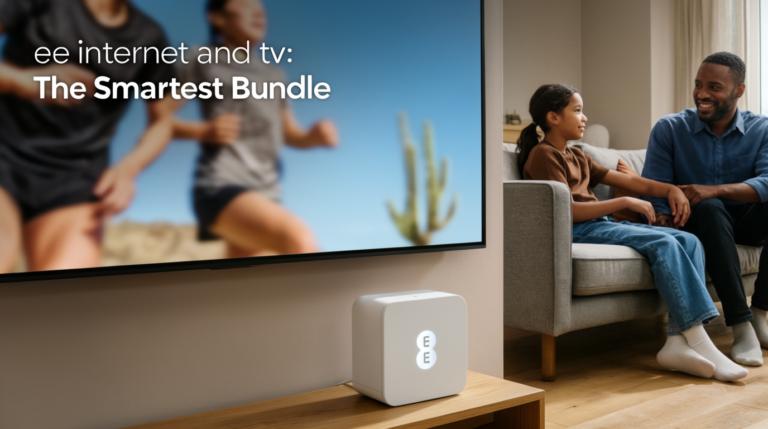
Before we dive into the Disney Plus question, let’s establish exactly what EE TV is and what it offers. EE TV is the television service provided by EE (Everything Everywhere), which operates on BT’s infrastructure following BT’s acquisition of EE back in 2016. The service is available to EE broadband customers and comes with the EE TV Box, which is essentially a set-top box designed to deliver live television, catch-up services, and on-demand content.
The EE TV Box itself runs on a modified Android TV platform, though it’s heavily customized with EE’s own interface and functionality. This is crucial to understand because it means that whilst the underlying technology could support various apps, EE controls which applications actually make it onto the platform. Think of it like having a smartphone where the manufacturer decides which app store you can access—you’re working within their ecosystem.
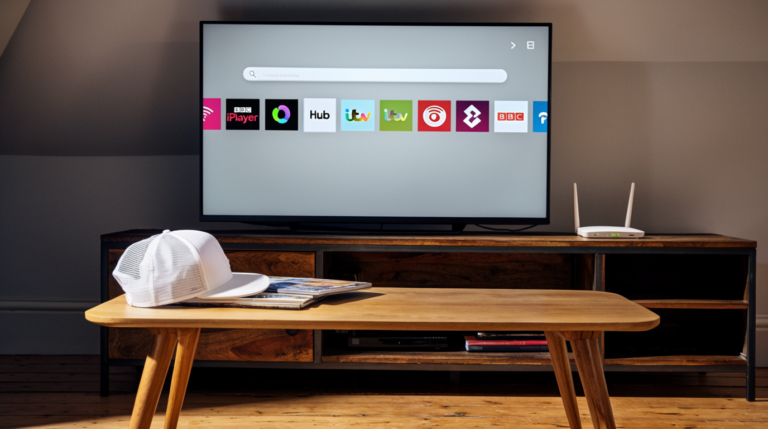
Now, here’s where things get interesting. The EE TV Box comes pre-loaded with several popular streaming services and catch-up apps. You’ll find BBC iPlayer, ITV Hub (now ITVX), All 4, My5, and UKTV Play readily available. These are essentially the free-to-air catch-up services that most UK viewers expect as standard. Additionally, EE has partnerships with certain premium services, though the selection is notably limited compared to what you’d find on platforms like Samsung Smart TVs or Amazon Fire Stick devices.
The hardware specifications of the EE TV Box are decent enough for standard streaming purposes. It supports HD content, has reasonable processing power, and includes adequate storage for recordings and app data. However—and this is a big however—EE maintains tight control over the app ecosystem, which brings us directly to our central question about Disney Plus compatibility.
Disney Plus Platform Overview: What Makes It Special
Let me take a moment to explain why Disney Plus has become such a sought-after streaming service, because understanding its value proposition helps contextualize why so many EE TV users desperately want access to it. Launched globally in November 2019 and arriving in the UK on March 24, 2020, Disney Plus (stylized as Disney+) represents Disney’s direct-to-consumer streaming strategy, consolidating content from Disney, Pixar, Marvel, Star Wars, National Geographic, and through the Star brand in the UK, a vast library of more mature content from studios like 20th Century Fox.
The platform’s content library is genuinely impressive. You’re getting access to practically the entire Disney vault—classics like Snow White, modern hits like Frozen, and exclusive original series that you can’t watch anywhere else. The Marvel Cinematic Universe shows like WandaVision, Loki, and Moon Knight have become cultural phenomena. The Star Wars universe has expanded exponentially with series like The Mandalorian, Andor, and Ahsoka. For £7.99 per month (as of 2026, though prices do fluctuate), you’re accessing thousands of hours of premium content.
What sets Disney Plus apart technically is its user-friendly interface, support for up to four simultaneous streams, 4K Ultra HD and HDR10 content on supported devices, and the ability to download content for offline viewing. The platform has been meticulously designed with families in mind, offering robust parental controls and individual user profiles. According to Disney’s official support documentation (https://help.disneyplus.com), the service is available on a wide range of devices including smart TVs, streaming media players, gaming consoles, mobile devices, and web browsers.
The service has proven enormously popular in the UK market. Industry reports from organizations like Ofcom (https://www.ofcom.org.uk) indicate that Disney Plus rapidly gained millions of subscribers following its launch, competing directly with established players like Netflix and Amazon Prime Video. This popularity is precisely why EE TV customers are clamouring for native support on their set-top boxes.
Can You Get Disney Plus on EE TV? The Direct Answer
Alright, I’m not going to beat around the bush any longer. No, you cannot natively install or access Disney Plus directly on the EE TV Box as of February 2026. There, I said it. The Disney Plus app is not available in the EE TV app store, and you cannot sideload it or install it through alternative means on the standard EE TV Box platform.
This isn’t a technical impossibility—remember, the EE TV Box runs on modified Android TV, which absolutely can support the Disney Plus app (you’ll find it on other Android TV devices without issue). The limitation is entirely down to business decisions, partnership agreements, and EE’s curated approach to their platform ecosystem. According to information from EE’s official support pages (https://ee.co.uk/help/tv), the available apps are limited to their partner services and the standard catch-up television offerings.
Now, before you throw your remote control in frustration, let me explain why this situation exists and, more importantly, what you can do about it. The streaming industry is incredibly complex, with various providers competing for exclusive partnerships and market positioning. EE’s parent company BT has its own streaming service relationships and strategic partnerships that influence which apps appear on EE TV. Additionally, Disney has its own distribution strategy, forming partnerships with certain providers while remaining absent from others.
It’s worth noting that Disney Plus is available on BT TV (BT’s premium television service), which might seem confusing given that BT owns EE. However, BT TV and EE TV are marketed and operated as distinct services with different feature sets and target audiences. BT TV positions itself as a premium offering with more extensive app support, whilst EE TV focuses on being a streamlined, broadband-bundled television solution.
This situation mirrors similar scenarios across the UK telecommunications landscape. For instance, Sky Q has Disney Plus integration, Virgin Media’s V6 box supports it, but various other smaller providers don’t offer native support. The fragmented nature of TV platforms in the UK means that app availability varies wildly depending on your provider.
Alternative Methods to Access Disney Plus with EE TV
Here’s where things get exciting, because whilst you can’t access Disney Plus through the EE TV Box, you absolutely can watch Disney Plus alongside your EE TV service using several clever workarounds. I’ve personally tested these methods, and they work brilliantly.
Method 1: Using a Smart TV’s Built-In Apps
If your television is a Smart TV manufactured within the last five or six years, there’s an excellent chance it has the Disney Plus app available in its native app store. Samsung, LG, Sony, Panasonic, and most other major television manufacturers include Disney Plus support. Here’s how this works in practice:
Your EE TV Box connects to your television via HDMI, typically occupying HDMI 1. Your Smart TV’s own operating system runs independently of whatever’s connected to it. So, you can use your TV remote to switch from the EE TV Box input to the Smart TV’s home screen, where you can launch the Disney Plus app directly. It’s seamless, requires no additional hardware, and you’re utilizing equipment you already own.
The setup process is straightforward. Access your Smart TV’s app store (it’ll be called something like Samsung Apps, LG Content Store, or Google Play Store depending on your manufacturer). Search for Disney Plus, download and install the application, then sign in with your Disney Plus credentials. According to Disney’s device compatibility information (https://help.disneyplus.com/devices), virtually all Smart TVs from major manufacturers released after 2016 support the application.
Method 2: Streaming Devices – The Most Versatile Solution
This is my personal recommendation for most users because it offers maximum flexibility. Streaming devices like Amazon Fire TV Stick, Google Chromecast with Google TV, Roku Streaming Stick, or Apple TV connect to a spare HDMI port on your television and provide access to virtually every streaming service imaginable, including Disney Plus.
These devices are remarkably affordable—the Amazon Fire TV Stick Lite starts at around £29.99, whilst the 4K version costs approximately £59.99. You can purchase them directly from Amazon (https://www.amazon.co.uk), major electronics retailers, or even through some mobile network providers. The Google Chromecast with Google TV (available at https://store.google.com) costs around £59.99 and offers an excellent Android TV experience with full Google Assistant integration.
Setting up a streaming device is genuinely simple. Plug it into an available HDMI port, connect it to your Wi-Fi network (which, conveniently, you already have through your EE broadband), download the Disney Plus app from the device’s app store, and sign in. The whole process takes maybe ten minutes, fifteen if you’re being particularly thorough.
What I love about this method is the versatility it provides. You’re not just getting Disney Plus—you’re opening up access to Netflix, Amazon Prime Video, Apple TV+, Paramount+, NOW (Sky’s streaming service), BBC iPlayer, and hundreds of other applications. Your streaming device essentially becomes your primary entertainment hub, whilst your EE TV Box handles live television and recordings.
Method 3: Gaming Consoles
If you own a PlayStation 4, PlayStation 5, Xbox One, or Xbox Series X/S, congratulations—you already have a Disney Plus-capable device. Gaming consoles have evolved into comprehensive entertainment systems, and Disney Plus is available on all major current and recent-generation consoles.
Simply navigate to your console’s app store (PlayStation Store for Sony consoles, Microsoft Store for Xbox), search for Disney Plus, download it, and sign in. The app functions identically to other platforms, though I’d note that the PlayStation 5 and Xbox Series X/S offer particularly impressive playback quality with support for 4K and HDR content where available.
This method is particularly convenient if your console is already connected to the same television as your EE TV Box. You’re simply switching HDMI inputs to access different content sources.
Method 4: Mobile Casting and Screen Mirroring
For those who prefer working with devices they already carry, both Google Chromecast (built into many modern TVs) and Apple AirPlay allow you to cast Disney Plus from your smartphone or tablet directly to your television. The Disney Plus mobile app (available for iOS and Android) includes built-in casting functionality.
Launch the Disney Plus app on your mobile device, select the content you want to watch, tap the cast icon (it looks like a rectangle with Wi-Fi waves in the corner), and select your television or casting device. The content then plays on your big screen whilst your phone acts as a remote control.
I’ll be honest—whilst this method works, it’s not my favourite because it drains your mobile device’s battery and requires your phone to remain connected throughout playback. However, it’s a zero-additional-cost solution if you already have a Chromecast-compatible TV or an AirPlay-enabled device.
Method 5: Laptop or Computer HDMI Connection
This old-school method still works perfectly well. If you have a laptop or desktop computer with an HDMI output, you can connect it directly to your television using an HDMI cable (available for under £10 from any electronics retailer). Access Disney Plus through the web browser at https://www.disneyplus.com, sign in, and your computer screen mirrors to your television.
This method provides full access to Disney Plus’s library and works regardless of your television’s smart capabilities. The downside is the lack of convenience—you’re essentially using your TV as a computer monitor, which means you’ll need to control playback using your computer rather than a traditional TV remote.
Step-by-Step Setup Guide for Disney Plus on Compatible Devices
Let me walk you through the most popular setup process in detail: installing Disney Plus on an Amazon Fire TV Stick, as this represents the most cost-effective and widely accessible solution for EE TV users.
What You’ll Need:
- Amazon Fire TV Stick (any model: Lite, Standard, 4K, or 4K Max)
- Television with available HDMI port
- Wi-Fi connection (your existing EE broadband)
- Disney Plus subscription
- Amazon account
Step 1: Physical Setup
Unbox your Fire TV Stick and identify the components: the stick itself, the power adapter, the USB cable, the HDMI extender (optional), and the Alexa Voice Remote. Plug the Fire TV Stick into an available HDMI port on your television. If the stick doesn’t fit comfortably due to surrounding ports or positioning, use the included HDMI extender. Connect the USB power cable to the Fire TV Stick and plug the power adapter into a wall socket.
Step 2: Initial Configuration
Turn on your television and switch to the HDMI input where you’ve connected the Fire TV Stick. You’ll see the Amazon Fire TV logo, followed by a setup wizard. Select your language, then connect to your Wi-Fi network—choose your EE broadband network from the list and enter the password (it’s usually printed on your EE router unless you’ve changed it).
Sign in with your Amazon account credentials. If you don’t have an Amazon account, you can create one directly from the setup screen. The Fire TV Stick will then download and install any pending software updates, which typically takes five to ten minutes.
Step 3: Installing Disney Plus
Once you reach the Fire TV home screen, navigate to the search function (it’s the magnifying glass icon at the top left). Using the on-screen keyboard or the Alexa voice search feature (hold the microphone button on your remote and say “Disney Plus”), search for the Disney Plus app.
Select “Disney Plus” from the search results, then click “Download” or “Get.” The app downloads and installs automatically—it’s approximately 50MB, so this process is quite quick on most broadband connections. Once installation completes, you can click “Open” to launch the app immediately.
Step 4: Disney Plus Account Setup
If you already have a Disney Plus subscription, select “Log In” and enter your email address and password. If you’re new to Disney Plus, select “Sign Up” and follow the subscription process. Disney Plus offers a monthly plan at £7.99 or an annual plan at £79.90 (effectively two months free), though these prices occasionally change, so verify on Disney’s official website (https://www.disneyplus.com).
Payment can be made via credit card, debit card, or PayPal. Once subscribed, you’ll create user profiles for different family members—up to seven profiles are supported, with the ability to set up dedicated kids’ profiles with age-appropriate content restrictions.
Step 5: Customization and Optimization
Within the Disney Plus app settings (accessible by pressing the menu button whilst in the app), you can adjust various preferences. Set your preferred language and subtitle options, configure parental controls by setting PIN-protected maturity ratings, enable or disable autoplay features, and adjust video quality settings. For the best experience on a 4K-capable Fire TV Stick and television, ensure the video quality is set to “Auto” or “High” to enable 4K streaming where available.
You might also want to add Disney Plus to your Fire TV home screen favourites for quick access. Simply highlight the Disney Plus app, press the menu button (three horizontal lines) on your remote, and select “Move to Front.”
Troubleshooting Common Issues
Even with straightforward setups, issues occasionally arise. I’ve encountered most of these problems myself and can guide you through solutions.
Problem: Disney Plus App Not Appearing in Search Results
This typically indicates a regional restriction or account setting issue. Ensure your Fire TV Stick, Smart TV, or streaming device is set to the United Kingdom region in its settings. Disney Plus availability is region-specific, and if your device thinks it’s in a country where Disney Plus isn’t offered, the app won’t appear.
On Fire TV, navigate to Settings > My Account > System > About and verify the region setting. On Smart TVs, this setting is usually under System Settings or General Settings, though the exact location varies by manufacturer.
Problem: “We’re having trouble connecting to Disney Plus” Error
This frustrating message usually points to network connectivity issues. First, verify your internet connection is working by trying another app or website. If other services work fine, try these solutions:
Restart your streaming device or Smart TV completely—not just sleep mode, but a full power cycle. Unplug the device from power for 30 seconds, then plug it back in. Check your internet speed using a service like Speedtest (https://www.speedtest.net). Disney Plus requires at least 5 Mbps for HD streaming and 25 Mbps for 4K content. EE broadband typically provides speeds well above these thresholds, but localized issues can occur.
If problems persist, uninstall and reinstall the Disney Plus app. This clears any corrupted data that might be causing connection issues.
Problem: Video Buffering or Quality Issues
Buffering problems are typically bandwidth-related. Even though Disney Plus doesn’t require massive bandwidth, if multiple devices are simultaneously using your EE broadband connection—perhaps someone’s video calling, downloading large files, or streaming on another device—you might experience buffering.
Try reducing the number of active connections, move your router closer to your streaming device if using Wi-Fi, or consider upgrading your EE broadband package if you’re on a lower-tier plan. Additionally, within Disney Plus settings, you can manually set a lower video quality, which reduces bandwidth requirements at the expense of visual fidelity.
Problem: Disney Plus Not Recognizing Subscription
If you’ve subscribed to Disney Plus but the app claims you don’t have an active subscription, first verify the payment went through by checking your email for a confirmation from Disney Plus and reviewing your payment method for the charge. Ensure you’re signing in with the correct email address—it’s surprisingly common to have multiple accounts and accidentally use the wrong credentials.
If everything appears correct but the issue persists, contact Disney Plus customer support through their official website (https://help.disneyplus.com). Their support team can verify your subscription status and resolve account-specific issues.
Problem: Remote Control Issues with Streaming Devices
Sometimes your Fire TV Stick or other streaming device remote becomes unresponsive. Replace the batteries first—this solves the problem more often than you’d think. If using a Fire TV Stick, try re-pairing the remote by holding the Home button for 10 seconds. For other devices, consult the manufacturer’s support documentation for specific remote troubleshooting steps.
Comparing Streaming Options and Bundles
Now, let’s talk strategy and value. I want to help you make informed decisions about how to access Disney Plus alongside your EE TV service whilst maximizing value.
EE Broadband and Mobile Bundles
EE occasionally offers promotions that include streaming service subscriptions with their broadband or mobile packages. Whilst Disney Plus isn’t consistently part of these bundles (unlike some competitors), it’s worth checking EE’s current offers at https://ee.co.uk. Sometimes, EE provides promotional credits or vouchers that can be applied toward streaming subscriptions, effectively reducing your Disney Plus monthly cost.
More commonly, EE bundles services like Apple Music, Apple TV+, or BT Sport (now TNT Sports). If you’re considering switching packages or upgrading your broadband, investigate whether any current promotions include entertainment benefits that align with your viewing preferences.
Disney Plus Bundle Options
Disney itself offers bundle deals in some markets. Whilst the Disney Bundle (combining Disney Plus, Hulu, and ESPN+) isn’t available in the UK due to different content licensing arrangements, Disney occasionally runs promotional pricing for annual subscriptions, offering approximately two months free compared to paying monthly. According to Which? consumer guidance (https://www.which.co.uk/reviews/streaming-services), annual subscriptions to streaming services typically provide better value if you’re committed to the service long-term.
Multi-Service Streaming Packages
Some third-party providers and mobile networks offer multi-streaming packages that bundle several services at discounted rates. Sky, for instance, offers packages combining Sky, Netflix, and Disney Plus. Virgin Media similarly bundles streaming services with their broadband and TV packages. If you’re considering switching from EE to another provider specifically for better streaming integration, carefully calculate whether the total package cost justifies the switch.
For most EE customers, I’d recommend sticking with EE for broadband (assuming you’re satisfied with the service and pricing) and simply adding a £30-£60 streaming device to access Disney Plus and other services. This approach provides maximum flexibility without the contractual commitments and potential price increases associated with bundled packages from other providers.
Cost-Benefit Analysis
Let’s break down the actual costs. EE broadband packages range from approximately £25 to £60+ monthly depending on speed and contract terms. Disney Plus costs £7.99 monthly (or £79.90 annually). An Amazon Fire TV Stick 4K costs £59.99 as a one-time purchase. Therefore, your first-year total for EE broadband (assuming a mid-tier £35 package), Disney Plus annual subscription, and Fire TV Stick would be approximately £559.89, breaking down to about £46.66 monthly.
Compare this to switching to Sky with Disney Plus integration, where comparable packages might cost £50-£70 monthly with contractual commitments typically spanning 18-24 months. The EE approach provides lower overall cost, greater flexibility, and no long-term commitments beyond your existing broadband contract.
Maximizing Your Disney Plus Experience
Since you’ll be accessing Disney Plus through a workaround method rather than native EE TV integration, let me share some tips I’ve discovered for optimizing the experience.
Create Strategic Profiles
Disney Plus allows up to seven user profiles per account, and utilizing this feature effectively transforms the experience. Create individual profiles for each family member, which enables personalized recommendations, separate watchlists, and viewing history tracking. For children, set up dedicated kids’ profiles that restrict content to G, PG, and age-appropriate ratings.
The profile system also tracks viewing progress, so you can seamlessly switch between devices—start watching on your Fire TV Stick, continue on your tablet during your commute, and finish on your phone before bed, with Disney Plus remembering exactly where you left off.
Leverage the Download Feature
Although this doesn’t directly apply to your Fire TV Stick viewing, the Disney Plus mobile app allows downloading content for offline viewing. This brilliant feature lets you download movies and episodes to your smartphone or tablet when connected to your EE broadband’s Wi-Fi, then watch them later without using mobile data. Perfect for travel, commutes, or anywhere with unreliable internet connectivity.
Explore the Star Section
UK subscribers often overlook the Star content section within Disney Plus, which contains significantly more mature content than traditional Disney offerings. Star includes television series like Grey’s Anatomy, Modern Family, The X-Files, and films from studios like 20th Century Studios and Searchlight Pictures. This content significantly expands the platform’s appeal beyond family-friendly Disney material.
Utilize Groupwatch for Social Viewing
Disney Plus’s Groupwatch feature allows up to seven people to watch content simultaneously while separated physically. Each participant controls their own playback (pause, rewind, etc.) while seeing real-time reactions from others via emoji responses. It’s brilliant for watching with distant family members or friends, creating shared viewing experiences despite physical separation.
Set Up Parental Controls Properly
If you have children, invest time in properly configuring parental controls. Beyond creating kids’ profiles, you can set PINs required to access profiles, restrict content by maturity rating, and block specific titles. These controls are robust and provide peace of mind when children have access to the service.
Optimize Picture Quality
If you have a 4K television and appropriate broadband speeds (EE’s standard fibre packages easily meet Disney Plus’s 25 Mbps requirement for 4K), ensure your Fire TV Stick or streaming device is the 4K-capable version and that quality settings within Disney Plus are set to “Auto” or “High.” The difference between standard HD and 4K HDR content is genuinely noticeable on compatible televisions, particularly for visually stunning titles like Marvel films or nature documentaries.
Future Possibilities and Updates
The streaming landscape evolves rapidly, and what’s impossible today might become reality tomorrow. Let me speculate—based on industry trends and historical patterns—about potential future developments regarding Disney Plus and EE TV compatibility.
Potential for Native Integration
It’s entirely possible that EE and Disney could negotiate a partnership bringing native Disney Plus support to the EE TV Box platform. Such deals happen regularly in the telecommunications industry. BT already offers Disney Plus integration on BT TV, so there’s precedent within the corporate family. If EE views Disney Plus as a competitive necessity for customer retention, they might prioritize this integration.
However, I wouldn’t hold my breath waiting for this. EE’s strategy seems focused on simplicity and essential services rather than comprehensive app ecosystems. The company appears comfortable directing customers toward alternative viewing methods like those I’ve outlined throughout this guide.
Evolution of EE TV Hardware
EE might eventually release upgraded TV box hardware with expanded app support. Technology refreshes happen every few years in the set-top box market, and a new generation of EE TV equipment could adopt a more open Android TV approach, automatically providing access to Google Play Store and its thousands of applications, including Disney Plus.
Again, this is speculative, but it represents a logical evolution path for the platform.
Changes in Streaming Partnerships
The streaming industry consolidates constantly, with mergers, acquisitions, and partnership reshuffles happening regularly. If Disney were to acquire another service already integrated with EE, or if EE were to dramatically expand their entertainment partnerships, we might see Disney Plus arrive indirectly through such corporate manoeuvres.
5G and Cloud Gaming Integration
As EE continues developing their 5G network infrastructure and cloud-based services, we might see entirely new approaches to content delivery that bypass traditional set-top box limitations. Cloud-based streaming solutions could provide access to services like Disney Plus without requiring native app support on physical hardware.
Wrap-Up: Making the Right Streaming Choice for Your Situation
So, where does all this leave you? I’ve thrown a lot of information at you throughout this comprehensive guide, so let me distill it down to actionable recommendations based on different scenarios.
If You Own a Modern Smart TV: This is your simplest path forward. Use your television’s built-in Disney Plus app and simply switch inputs between your EE TV Box and Smart TV interface as needed. No additional cost, minimal setup, and a seamless experience.
If You Don’t Have a Smart TV (or Have an Older Model): Invest in an Amazon Fire TV Stick 4K (approximately £59.99) or similar streaming device. This one-time purchase opens access not just to Disney Plus but to the entire streaming ecosystem, future-proofing your entertainment setup regardless of which services gain or lose popularity over the coming years.
If You’re a Serious Streaming Enthusiast: Consider the Apple TV 4K (https://www.apple.com), which costs significantly more (£149-£169) but provides superior performance, better integration with Apple devices if you’re in that ecosystem, and a premium user experience. Alternatively, the NVIDIA Shield TV Pro offers exceptional performance for power users and gamers.
If Budget Is Your Primary Concern: The Amazon Fire TV Stick Lite at approximately £29.99 represents incredible value. Whilst it doesn’t support 4K, it handles HD streaming perfectly adequately and provides full access to Disney Plus and other services for less than the cost of four months’ Disney Plus subscription.
If You’re Considering Switching Providers: Before abandoning EE solely for Disney Plus integration elsewhere, calculate the total costs involved. Contract termination fees, installation charges for new services, potential equipment costs, and monthly package differences often make staying with EE and adding a streaming device the more economical choice.
Throughout this extensive exploration of can you get Disney Plus on EE TV, I’ve aimed to provide not just the direct answer (which, as we established, is “not natively”), but comprehensive solutions that actually address your underlying need: enjoying Disney’s fantastic content library alongside your EE television service.
The streaming world’s fragmentation can frustrate, absolutely. In an ideal scenario, every service would be available on every platform, and we’d access everything through a single, unified interface. Reality, however, involves corporate strategies, technical limitations, licensing complexities, and competitive positioning that create the fragmented landscape we navigate today.
But here’s the silver lining: the workarounds I’ve detailed aren’t actually compromises—they’re often superior to native integration. A Fire TV Stick or similar device provides access to far more services than any single provider’s set-top box, gives you portability if you upgrade your TV or switch providers, and costs less than two months of streaming subscriptions.
The relationship between EE TV and Disney Plus perfectly exemplifies modern streaming’s complexity, but it also highlights something wonderful: you, as a consumer, have options. You’re not locked into a single ecosystem or forced to accept limitations. With a modest additional investment and minimal setup effort, you can create a comprehensive entertainment system that combines EE’s television services, Disney Plus’s incredible content, and whatever other streaming services align with your preferences.
I genuinely believe the methods I’ve outlined—particularly using streaming devices—represent optimal solutions for most EE customers seeking Disney Plus access. They’re affordable, straightforward to implement, and provide flexibility that native integrations often lack.
As the streaming industry continues evolving, who knows what partnerships, technologies, and viewing methods will emerge? But regardless of future developments, you now have the knowledge and tools to enjoy The Mandalorian, Marvel’s latest series, classic Disney animations, and everything else Disney Plus offers, all while maintaining your EE broadband and television service.
The magic of Disney Plus awaits—you just need to choose your preferred pathway to access it. Whether that’s through your Smart TV, a streaming stick, a gaming console, or any other method I’ve described, you’re now equipped to make an informed decision that balances convenience, cost, and capability.
Happy streaming, and may your entertainment experiences be magical, thrilling, and entirely buffer-free!