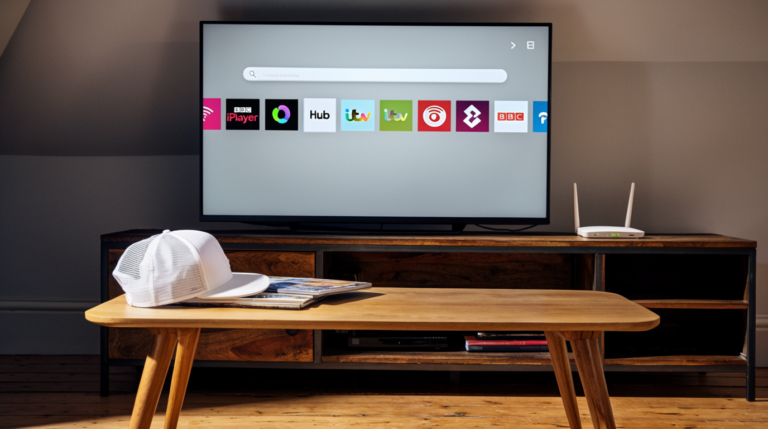
Can you record on EE TV? Yes — and honestly, if you’re not already taking full advantage of the recording features packed into your EE TV box, you’re leaving a seriously good deal on the table. Recording live television has gone from a luxury to an expectation in modern homes across the UK, and EE TV has risen to meet that demand in a way that’s both intuitive and impressively flexible.
Whether you’re someone who religiously follows a drama series, can’t bear to miss the football, or simply wants the freedom to watch what you want, when you want — EE TV’s recording functionality gives you that control. In this guide, I’m going to walk you through everything you need to know: how to record on EE TV, how to set up series links, how to manage your storage, what to do when things go wrong, and how EE TV stacks up against the competition. By the end, you’ll be a bona fide EE TV recording expert.
Let’s get into it.

What Is EE TV? A Quick Overview
Before diving headfirst into the recording features, it’s worth taking a moment to understand what EE TV actually is — because it’s a bit more layered than your average set-top box.
EE TV is a broadband-bundled television service offered by EE (formerly Orange and T-Mobile UK, now a subsidiary of BT Group). It combines live Freeview channels, on-demand content, and apps like Netflix and Disney+ into a single unified platform. The service is delivered through the EE TV box, which connects to your home broadband and aerial to give you a full-featured entertainment hub. Unlike Sky or Virgin Media, EE TV doesn’t require a separate satellite dish or cable installation — it runs primarily over your existing aerial and your EE broadband connection.
EE TV is particularly popular with customers who want a straightforward, no-fuss television experience that complements their broadband package. As of 2024–2025, EE TV has continuously evolved, improving its interface, adding premium channel bolt-ons, and — crucially for this article — refining its recording capabilities. According to Ofcom’s broadband and TV statistics (https://www.ofcom.org.uk/research-and-data), UK consumers increasingly expect recording and time-shifting features as a core part of their TV service, which is precisely why understanding how recording on EE TV works matters so much.
How Does Recording Work on EE TV?

At its core, recording on EE TV works through a built-in DVR (Digital Video Recorder) that’s integrated directly into the EE TV box. Think of it like having a smart VHS machine that never runs out of tapes — except instead of tapes, you’ve got a hard drive inside the box that stores your programmes digitally.
When you record a show, the EE TV box captures the broadcast signal from your aerial, encodes it digitally, and saves it directly onto the internal hard drive. You can then access your recordings at any time through the My Recordings section of the EE TV interface. The beauty of this system is that it works independently of your internet connection for Freeview channels — so even if your broadband goes down, recordings you’ve already saved are still accessible.
Additionally, EE TV allows pause and rewind live TV functionality, which technically uses a temporary recording buffer. This means that even when you’re not actively recording something, the box is quietly saving the last hour or so of whatever channel you’re watching — allowing you to jump back and catch a moment you missed. Pretty clever, isn’t it?
Setting Up Your EE TV Box for Recording
Getting your EE TV box ready to record is refreshingly straightforward. If you’ve just set up your box for the first time, there are a few things you’ll want to confirm before you start scheduling recordings.
First, make sure your EE TV box is properly connected to your TV aerial. Recording on EE TV for Freeview channels requires a good aerial signal — without it, recordings may come out grainy, incomplete, or fail entirely. EE recommends using a rooftop aerial for the best results, especially if you’re in a signal-challenged area. You can check signal strength by navigating to Settings > Signal Strength on your EE TV box. If you’re seeing weak signal warnings, it’s worth contacting a local aerial installer or checking resources like the Digital Spy technology section (https://www.digitalspy.com/tech/) for troubleshooting tips.
Second, ensure your EE TV box has enough available storage. Fresh out of the box, your EE TV device comes with a specific amount of internal hard drive space (more on this in the storage section), and you’ll want to know what you’re working with before you go wild scheduling Series Links for every show on telly.
How to Record a Single Programme on EE TV
Recording a single programme on EE TV is one of the easiest things you can do with the box — it takes about three button presses. Here’s exactly how to do it:
Method 1 — Recording from the EPG (Electronic Programme Guide):
- Press the Guide button on your EE TV remote to open the Electronic Programme Guide.
- Browse to the programme you want to record using the arrow keys.
- Highlight the programme and press OK or Select.
- A menu will appear with options including Record.
- Select Record and confirm your choice.
The programme will now appear in your scheduled recordings list, and a red dot icon will show on the EPG to confirm it’s been scheduled.
Method 2 — Recording the programme you’re currently watching:
- While watching the programme live, press the Record button (usually a red circle) on your remote.
- A confirmation message will appear on screen.
- Press OK to confirm the recording.
That’s genuinely it. No fuss, no complicated menus, no need to consult a manual. EE TV has made single-programme recording as painless as possible, which is exactly what you want from a modern TV service. One thing to bear in mind — always double-check that the recording starts a minute or two early and ends a minute or two late, especially for live events where scheduling can overrun. You can adjust this by selecting Recording Options when you schedule your programme.
How to Set Up Series Recording on EE TV
Now this is where EE TV really starts to shine. If you’re a binge-watcher or a devotee of a long-running series, manually recording each episode individually would drive you absolutely mad. That’s why Series Recording (also called Series Link) is one of the most valuable features on the EE TV box.
Setting up a series recording on EE TV:
- Open the EPG and navigate to any episode of the series you want to record.
- Press OK to open the programme details.
- Instead of selecting Record, select Record Series or Series Link.
- Confirm your selection.
From that point forward, EE TV will automatically record every new episode of that series as it airs — even if the scheduling changes slightly. The box uses the programme’s unique broadcast identifier to track episodes, which means it’s reasonably smart about avoiding duplicate recordings of the same episode across different timeslots or repeat broadcasts.
Managing your Series Links is equally simple. Navigate to Recordings > Series Links (or Scheduled > Series) and you’ll see every active series recording. From here, you can delete a series link, adjust settings, or add specific exclusions. This is genuinely one of the most useful features EE TV offers, and it’s one that surprisingly many users don’t bother to explore — don’t be that person.
Recording While Watching Something Else
Here’s a question I get asked all the time: can you record one channel on EE TV while watching another? Yes — absolutely. This is standard functionality for the EE TV box, which includes a dual-tuner setup that allows it to receive two separate broadcast signals simultaneously.
In practical terms, this means you can have one tuner actively recording a programme on, say, BBC One, while you sit back and watch Channel 4 on your other tuner in real time. For households where TV viewing preferences diverge (which, let’s be honest, is most of them), this is a genuine lifesaver.
Can you record two things at once on EE TV? Also yes. You can set up two simultaneous recordings — one on each tuner — as long as both programmes are on different channels. Where it gets tricky is if you’re trying to record two channels and watch a third live. In that scenario, you’ll get a notification warning you of a recording conflict, and you’ll need to choose which recording to prioritise or watch one of the channels you’re recording instead of a free third channel. It’s a minor limitation, but one worth being aware of when scheduling a particularly TV-heavy evening.
How Much Storage Does EE TV Give You?
Storage is one of the most practical considerations when it comes to recording on EE TV, and it’s something a lot of people don’t think about until they’re suddenly getting “storage full” warnings mid-recording.
The EE TV box typically comes with 500GB of internal hard drive storage. To put that in perspective, a standard-definition one-hour programme takes up roughly 1–2GB of space, while an HD programme uses approximately 3–5GB per hour. That means, in theory, you can store somewhere in the region of:
- Around 250–300 hours of standard-definition content
- Around 100–150 hours of high-definition content
- Or a mixed combination of both
That’s a substantial library — more than enough for the average viewer. However, if you’ve set up a dozen Series Links, record HD sports events regularly, and never delete anything, you’ll find that storage fills up faster than you’d expect.
Unfortunately, EE TV does not currently support external hard drive expansion in the same way some other boxes do. This means you’re working within the limits of that internal 500GB — so good recording management is key. I’d recommend doing a storage audit every month or so, clearing out recordings you’ve already watched, and being selective about which series you commit to recording in HD versus SD.
Managing Your EE TV Recordings
Good recording management on EE TV is the difference between a cluttered, frustrating experience and a smooth, organised one. Thankfully, the EE TV interface makes it reasonably intuitive to manage your recordings library.
To access your recordings, navigate to My Recordings from the EE TV home menu. Here, you’ll see all your saved programmes organised by date, title, or series. You can:
- Delete individual recordings by highlighting them and pressing the Options or Delete button
- Delete an entire series by selecting the series folder and choosing Delete All
- Lock a recording to prevent accidental deletion — useful for films you’ve been meaning to watch for six months
- Rename recordings for clarity, especially helpful if you record a lot of live events or specials
One feature I particularly appreciate is the automatic deletion warning — EE TV will alert you before it automatically removes older recordings to make room for new ones (if you’ve enabled auto-deletion). This means you won’t lose something important without any notice.
A genuinely useful habit to adopt is scheduling a monthly clear-out of your recordings library. Go through, watch or delete anything that’s been sitting unwatched for more than a couple of weeks, and keep your storage healthy. You’ll thank yourself the next time you want to record a full series of something epic without worrying whether there’s space.
Can You Record on EE TV Without a Subscription?
This is a great question — and the answer is nuanced. EE TV’s recording functionality for Freeview channels (BBC One, BBC Two, ITV, Channel 4, Channel 5, and the dozens of other free-to-air channels available via Freeview) is available as part of the core EE TV box functionality. You don’t need a separate TV subscription to record Freeview content — it’s included.
However, recording premium or subscription channels (like Sky Sports via a bolt-on, or certain other paid-for content) requires the relevant subscription or add-on. And some streaming content — for example, programmes played back via the Netflix or Disney+ apps built into the EE TV box — cannot be recorded at all. This is because those services operate their own DRM (Digital Rights Management) systems that prevent third-party recording, and EE TV, like all other set-top boxes, has to abide by those restrictions.
So to summarise: record freely from Freeview with no extra cost, subscribe to bolt-ons to record premium channels, and accept that streaming app content is off-limits for recording — use the download features within those apps instead, if they offer them.
EE TV Recording vs Sky Q vs Virgin Media — Which Is Better?
Let’s get into the comparison, because EE TV doesn’t exist in a vacuum — it’s competing with some seriously capable platforms, and it’s worth knowing where it stands.
EE TV vs Sky Q: Sky Q (https://www.sky.com/shop/tv/sky-q) is arguably the gold standard for recording in the UK. Sky Q offers up to 2TB of storage on its larger box, six simultaneous recordings on the premium model, and a phenomenal interface. It beats EE TV on raw recording power quite convincingly. However — and this is a big however — Sky Q requires a satellite dish, a full subscription package, and monthly fees that are significantly higher than EE TV. If budget is a consideration, EE TV offers remarkable value.
EE TV vs Virgin Media: Virgin Media’s TV 360 box (https://www.virginmedia.com) also boasts impressive storage (up to 1TB on some models) and excellent recording features. Virgin Media requires cable infrastructure, which isn’t available in every UK property. EE TV, running over a standard broadband and aerial connection, is much more widely accessible geographically.
The verdict: For pure recording power and premium features, Sky Q leads. For accessibility, value, and solid all-round performance, EE TV holds its own extremely well — particularly for viewers who rely primarily on Freeview channels and the major streaming apps. TechRadar’s comparison of the best set-top boxes (https://www.techradar.com/best/best-set-top-boxes) consistently highlights EE TV as a strong contender in the budget-to-mid-range category.
Common Recording Problems on EE TV (and How to Fix Them)
Even the best technology has off days. Here are the most common EE TV recording problems and how to sort them out:
1. Recording Failed — Signal Issue If a recording fails with a signal error, check your aerial connection. Reseat the coaxial cable into the back of the EE TV box and your TV point. If signal strength is consistently low, consider a signal booster or aerial upgrade.
2. Recording Disappeared If a recording has vanished from your library, it may have been auto-deleted due to storage being full. Check your storage usage under Settings > Storage. Going forward, lock important recordings to prevent auto-deletion.
3. Cannot Record — Storage Full Navigate to My Recordings and delete unwatched or duplicate content. Consider setting your Series Links to record in Standard Definition rather than HD to save space.
4. Recording Starts Late or Ends Early This is usually a scheduling issue from the broadcaster. When scheduling a recording, use Recording Options to add padding time (start 2 minutes early, end 5 minutes late) to catch overruns.
5. Scheduling Conflict With only two tuners, recording conflicts can occur. EE TV will notify you of conflicts in advance — review your scheduled recordings and prioritise accordingly.
6. EE TV Box Freezing During Recording If the box freezes mid-recording, a soft restart (hold the power button for 10 seconds) usually resolves it. If the problem persists, check the EE TV support page (https://help.ee.co.uk/hc/en-gb) for firmware update information.
Tips and Tricks for Getting the Most Out of EE TV Recording
Want to squeeze every drop of value out of your EE TV recording setup? Here are my tried-and-tested tips:
Tip 1 — Use Series Links Proactively Don’t wait until a series is halfway through to set up a Series Link. The moment you know a new show is starting, set up the Series Link immediately so you catch every episode from the beginning.
Tip 2 — Record in SD When HD Isn’t Necessary For dramas, chat shows, and factual programmes, recording in Standard Definition versus HD is barely noticeable on most screens but saves a massive amount of storage. Reserve HD recording for sport, nature documentaries, and films where visual quality genuinely matters.
Tip 3 — Schedule Regular Storage Reviews Once a month, spend ten minutes going through your recordings and deleting anything you’ve already watched or are unlikely to ever watch. Think of it as tidying up your digital living room.
Tip 4 — Use Pause Live TV Strategically Rather than recording something you’re already watching, use the pause and rewind feature to catch up on anything you missed. This uses the live buffer rather than your recording storage.
Tip 5 — Check the Week Ahead Browse the EPG at the start of each week and schedule any recordings you want. Getting ahead of the schedule means you’re far less likely to miss something when life gets busy.
Tip 6 — Set Recording Padding for Live Events Football matches, award shows, and live events routinely overrun. Always add 15–30 minutes of post-recording padding when scheduling live events to avoid missing the best bit.
EE TV App — Can You Record Remotely?
Can you record on EE TV from your phone or tablet? This is increasingly important in a world where we’re often not sitting in front of the telly when we realise something we want to record is about to start.
EE TV does offer a companion app — available on iOS and Android — that allows you to browse the TV guide, manage your account, and in some functionality tiers, interact with your recordings and schedule. However, the full extent of remote recording functionality can depend on your specific EE TV box model, software version, and broadband package tier.
For the most up-to-date information on remote recording via the EE TV app, I’d strongly recommend checking the EE Help Centre directly (https://help.ee.co.uk/hc/en-gb), as app features are updated regularly and the specifics can vary. What I can confirm is that EE is actively developing its app ecosystem to match the expectations of modern viewers — the direction of travel is clearly towards greater remote functionality, and remote scheduling features continue to be refined with each update.
In the meantime, if remote scheduling is absolutely critical to your viewing lifestyle, it’s worth comparing EE TV’s current app capabilities with platforms like Sky Q, which has an arguably more mature and feature-rich remote recording app experience through its Sky Go and Sky+ Remote Record features.
EE TV and On-Demand — How Recording and Catch-Up Complement Each Other
One of the most underrated aspects of the EE TV experience is how well recording and on-demand content work together. You don’t always have to record something to watch it later — EE TV integrates catch-up services from all major broadcasters directly into its interface.
BBC iPlayer, ITVX, Channel 4’s streaming service (All 4), and My5 are all accessible through the EE TV menu, meaning that if you forget to record something, you can usually catch up via those services for up to 30 days after broadcast. This acts as a safety net that significantly reduces the stress of missing a live recording.
That said, recording still has clear advantages over catch-up. On-demand content relies entirely on your broadband speed — if your connection is slow or congested during peak hours, catch-up playback can buffer and stutter. A locally stored recording, on the other hand, plays back perfectly smoothly every time because it’s already stored on your hard drive. For important programmes — particularly HD content or anything you might want to rewatch — recording remains the superior choice.
It’s also worth noting that on-demand content is time-limited (BBC iPlayer programmes typically disappear after 30 days, for example), whereas your personal recordings stay on your hard drive indefinitely — until you delete them or run out of storage. That permanence is something no streaming service can replicate.
EE TV Recording for Sports Fans — What You Need to Know
Sports recording on EE TV deserves its own dedicated section because, let’s be honest, sport is one of the primary reasons people care about recording in the first place. Whether it’s Premier League football, Formula 1, Six Nations rugby, or Wimbledon, the ability to record live sport and watch it back at your own pace — skipping the dull bits, rewatching the great bits — is something sports fans are absolutely passionate about.
Here’s the critical context: EE TV gives you access to live sports via Freeview channels (BBC Sport, ITV Sport, Channel 4 Sport, and the free coverage available on these channels for major events), all of which are fully recordable. If you want to access Sky Sports, TNT Sports (now TNT Sports/BT Sport via EE bolt-ons), or other premium sports channels, you’ll need the relevant bolt-on subscription — but once you have it, recording works identically to Freeview recording.
Key tips for sports recording on EE TV:
- Always add generous post-recording padding. Matches run over, extra time happens, presentations take forever. I always add at least 60–90 minutes of post-padding to any live match recording.
- Use Series Links for tournaments. If you want to record every match of the World Cup, Six Nations, or Wimbledon, set up Series Links keyed to the programme name to capture the whole tournament automatically.
- Check storage before a big fixture. Nothing is more heartbreaking than a recording failing because your box ran out of space. Clear out old content the day before a big sporting event.
The Future of EE TV Recording — What’s Coming Next
The landscape of television recording is evolving rapidly, and EE TV is not standing still. As broadband speeds increase and cloud-based technologies become more affordable, the future of recording is likely to shift at least partially from local hard drive storage to cloud-based DVR systems — where your recordings are stored on servers rather than on a box in your living room.
BT Group (EE’s parent company) has the infrastructure to support cloud recording at scale, and it’s a logical evolution for the EE TV platform. Cloud recording would eliminate storage limitations entirely, allow access to your recordings from any device anywhere, and make remote scheduling effortless. Several US providers — including major cable companies — have already rolled out cloud DVR successfully, and UK platforms are watching closely.
In the nearer term, expect EE TV to continue refining its app-based functionality, improving its EPG interface, and potentially expanding its bolt-on options to include more premium sports and entertainment channels — all of which will be recordable through the same intuitive system described throughout this guide.
Wrap-Up — Making EE TV Work Harder for You
To bring it all together: yes, you absolutely can record on EE TV — and you can do so with impressive flexibility, ease, and reliability. From single-programme recording to full series links, from dual simultaneous recordings to managing a rich library of stored content, EE TV’s recording features are a genuinely compelling reason to choose the platform.
The key takeaways from this guide:
- Recording Freeview content is built in — no extra subscription needed
- 500GB of storage gives you a generous library capacity
- Dual tuners allow simultaneous recordings or record-while-watching flexibility
- Series Links make recording entire series completely effortless
- Catch-up TV complements recording as a safety net
- Sports fans should always add recording padding for live events
- Regular storage management keeps your system running smoothly
- The EE TV app is evolving towards greater remote recording functionality
Whether you’re brand new to EE TV or a long-time user who’s never fully explored the recording menu, I hope this guide has given you the knowledge and confidence to get far more out of your box. Can you record on EE TV? You certainly can — and now you know exactly how to do it brilliantly.
For official guidance and the latest feature updates, always refer to the EE Help Centre at https://help.ee.co.uk/hc/en-gb, and keep an eye on technology resources like TechRadar (https://www.techradar.com) and Which? (https://www.which.co.uk) for independent reviews and comparisons.